For Mac · Developer Tools
Never say “I wish I was recording” again.
Framecast — Mirror, record & capture flows.
Mirror your iPhone on your Mac over USB, then screenshot, record, rewind the last five minutes, and build annotated UI flow docs — without ever leaving your workflow.

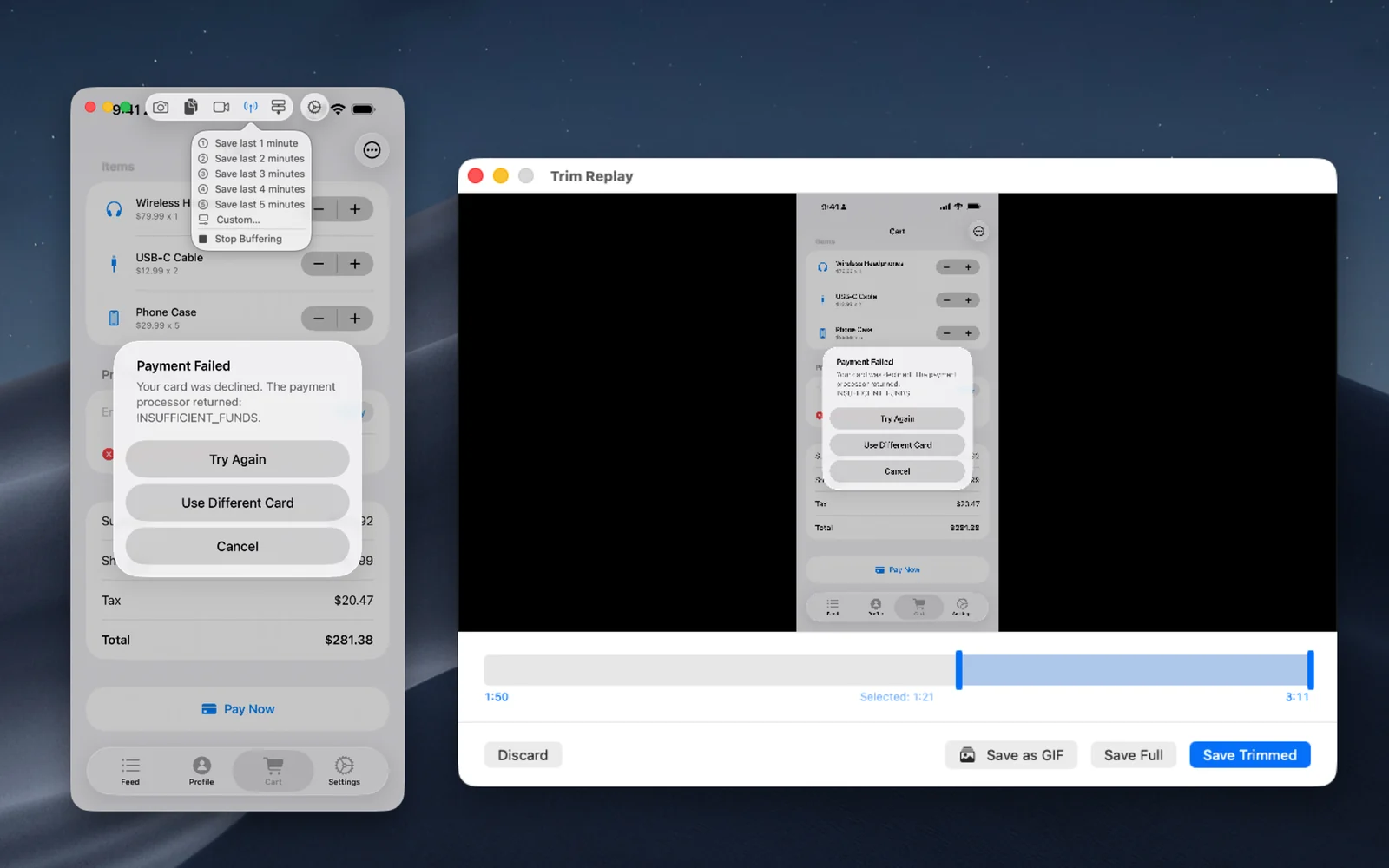
- Replay buffer
- 5 minReplay buffer
- Zero wireless lag
- USBZero wireless lag
- No Electron
- NativeNo Electron
- To clipboard
- 1 clickTo clipboard
Framecast is the screen mirroring and capture tool built for mobile developers. Connect your iPhone or iPad over USB and get a real-time mirror on your Mac — then screenshot, record and document UI flows without breaking concentration.
It uses the same capture technology as QuickTime Player, and adds the tools developers actually need: instant screenshots to the clipboard, a replay buffer that saves what just happened, and a Flow Composer for step-by-step documentation.
Four tools, one native app
Live screen mirror
Real-time mirroring of your iPhone or iPad over USB. Plug in and Framecast connects automatically, in a resizable window that keeps your device's aspect ratio — with an always-on-top option so the mirror stays visible while you code.
Zero-copy display
IOSurface rendering keeps CPU usage minimal, so a live mirror running all day costs you nothing on battery or fans.
Screenshots straight to the clipboard
Capture pixel-perfect PNG or JPEG with one click and paste instantly into Slack, Jira or Figma. Keyboard shortcuts for every action mean you never break your flow.
Screen recording
Record MP4 with configurable duration limits, and capture audio from physical devices while you record.
Replay buffer — never miss a bug
Framecast continuously buffers up to five minutes of screen activity in the background. Reproduce something weird and save the last 1 to 5 minutes instantly — no need to have been recording beforehand.
Built-in trim editor
A scrubber with draggable handles and preview playback, and lossless trimming so your saved clips stay sharp.
Flow Composer
Capture each screen in your flow with a single click, annotate every step with Details, Action and Expectation, and drag to reorder in the thumbnail strip. A live preview shows your device screen right in the composer.
Export docs, not screenshots
Export a flow as numbered PNGs with a Markdown summary, ready to drop into docs or a pull request — or copy an individual step with its annotations as rich text.
Native macOS, built properly
AVFoundation and CoreMediaIO for reliable, low-latency USB capture. Fast, lightweight, no Electron and no browser tabs. Memory usage stays near zero because the buffer is written to disk, not RAM.
Perfect for
Bug reports
Reproduce it once, then save the last two minutes from the replay buffer. The clip attaches itself to the ticket while the bug is still fresh.
Design reviews & redlines
Pixel-perfect screenshots to the clipboard, one shortcut at a time, straight into Figma or the review thread.
Documentation & onboarding
Flow Composer turns hours of manual screenshotting into structured, annotated documentation you can export in one go.
QA & pull requests
Regression screenshots, recorded UI flows, and a Markdown summary ready to paste into the PR description.
Questions, answered.
Does Framecast work wirelessly?
It captures over USB by design — there is no wireless lag, no dropped frames, and no extra setup beyond plugging your device in.
How does the replay buffer work?
Framecast continuously buffers up to five minutes of screen activity in the background, written to disk rather than RAM. When something happens, save the last 1, 2, 3, 4 or 5 minutes instantly.
What does Flow Composer export?
Numbered PNGs plus a Markdown summary containing your Details, Action and Expectation annotations for each step — ready for docs or a pull request. Individual steps can also be copied to the clipboard as rich text.
Is it an Electron app?
No. Framecast is a native macOS app built on AVFoundation and CoreMediaIO — fast, lightweight, and no browser tabs pretending to be a window.
Stop screenshotting by hand.
Connect over USB, capture what matters, and export documentation your team will actually read.